Interaction Logs
The Interaction Logs page lets you search and inspect individual LLM requests that passed through the gateway. Each entry records the caller, the model used, cost and token counts, timing, the HTTP result, and (when enabled) the full request and response bodies.
Use it to debug a single request, review what a user or project sent, or export a slice of traffic for offline analysis.
Feature toggle: Interaction logging must be enabled in the configuration file (
interaction_log.enabled: true). When it is disabled, this page is hidden from the portal.Role access: Super Admin and Auditor can view all interaction logs. Project Manager sees logs for the projects they own. Admin and User see only their own logs (matched by their user identity).
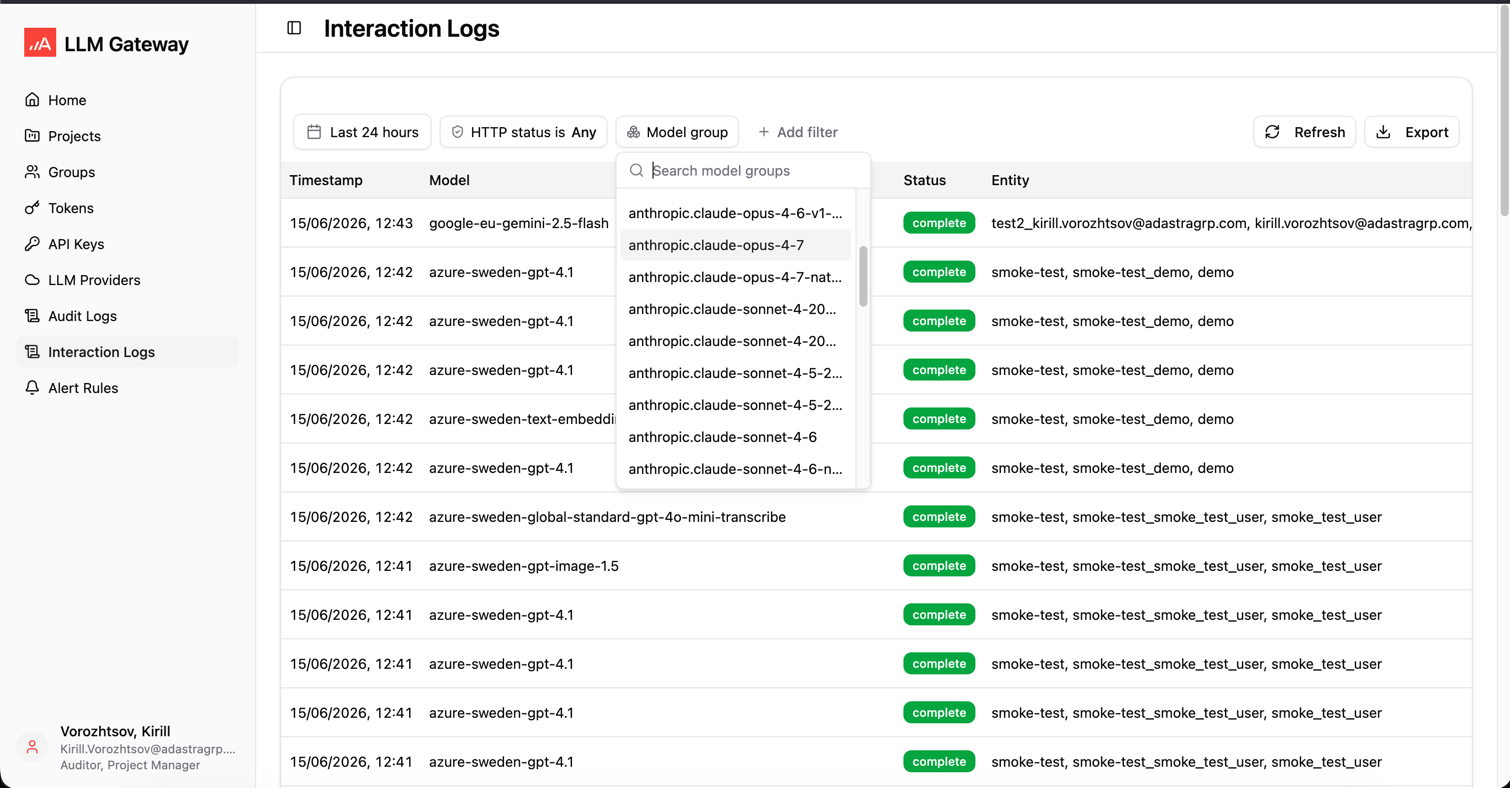
Log Filtering
The filter toolbar lets you narrow results by:
- User email - Email of the caller,
- Project name - Project on behalf of which the request was made,
- Credential - The ID of the credential (e.g., API Key) with which the request was made,
- Provider - The LLM provider (for example AzureOpenAI),
- Model group - The requested model group,
- Target model - The actual model deployment that served the request,
- Progress Status -
pendingorcomplete, - HTTP status - Result bucket (2xx, 4xx, 5xx, failed, or any),
- Streaming - Whether the response was streamed,
Details Dialog
Clicking Details opens a panel with the full record for one request:
- Metadata and statistics - duration, cost, token count, etc.
- Caller - Entities and the credential related to the request.
- Request - Provider, model group, target model, request URL, and the streaming flag,
- Response - HTTP status and the LLM response type,
- Request / Response body - When body logging is enabled, tabs show the stored request and response JSON.
Bodies are only available when body logging is enabled in the configuration file and the entity allows it. If a body was not stored, the tab shows that no body is available.
Controlling what is logged: Whether a project is logged, whether its logs are sensitive, and whether bodies are stored start from the deployment-wide defaults but can be overridden per project. Use the Interaction Logging tab on a project (see Projects).
Export
You can export the current filtered result set:
- CSV - Metadata only (no bodies). Suited for large exports,
- ZIP - Metadata plus the stored request and response bodies, organized per request.
Exports are capped by row limits and by how many exports can run at once. These limits are set in the configuration file (see Interaction Logs configuration). If body storage is not configured, the ZIP export is unavailable.