Admin Portal
The LLM Gateway admin portal provides comprehensive cost control and project management capabilities. It enables administrators to:
- Monitor gateway-wide spend, request volume, and top consumers from the home dashboard,
- Set spending limits at organization, group, and project levels,
- Manage user access and project ownership,
- Configure project-specific rate limits and quotas,
- Review complete audit trails and system activity logs.
Accessing Admin portal
To log in:
- Navigate to the login URL:
https://<admin-portal-deployment-url>/ - You'll be redirected to Microsoft's authentication page
- Use your company Azure AD credentials
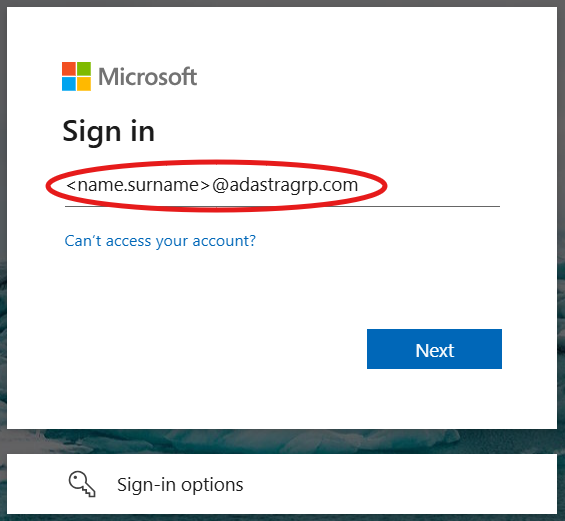
Note: You need to be granted access to the admin portal with an appropriate role. If you don't have access, contact your system administrator.
Roles and Permissions (RBAC)
The admin portal uses role-based access control (RBAC). Each user is assigned one of five roles via Azure AD app roles. When a user has multiple roles, the highest-priority role is used.
| Role | Description |
|---|---|
| Super Admin | Same access as Admin; reserved for break-glass and platform operators. |
| Admin | Full access to all portal features. Can create, update, and delete all entities. |
| Project Manager | Can view and manage projects, tokens, API keys, and audit logs for entities they own. Cannot create or delete projects, manage groups, or access LLM Providers. |
| Auditor | Read-only access across all areas: projects, keys, tokens, audit logs, IAM groups, and LLM providers. |
| User | End-user role. Can only view their own tokens and personal spend status. Has no access to management screens. |
Permissions by area
| Area | Super Admin | Admin | Project Manager | Auditor | User |
|---|---|---|---|---|---|
| Create / delete projects | Yes | Yes | No | No | No |
| Update projects, spend limits, model access | Yes | Yes | Yes (own only) | No | No |
| Create / rotate / delete API keys | Yes | Yes | Yes (own only) | No | No |
| Create / revoke tokens | Yes | Yes | Yes (own only) | No | No |
| View projects, API keys, tokens (management) | Yes | Yes | Yes (own only) | Yes | No |
| Manage groups | Yes | Yes | No | No | No |
| View groups and IAM | Yes | Yes | No | Yes | No |
| View audit logs | Yes | Yes | Yes (own only) | Yes | No |
| View interaction logs | Yes | Yes (own only) | Yes (own projects) | Yes | Yes (own only) |
| Enable / disable LLM providers | Yes | Yes | No | No | No |
| View LLM providers | Yes | Yes | No | Yes | No |
| View agents overview | Yes | Yes | No | Yes | No |
| Manage alert rules | Yes | Yes | No | No | No |
| View alerts and alert rules | Yes | Yes | Yes | Yes | No |
| View billing / usage stats | Yes | Yes | Yes | Yes | Yes |
| View Home dashboard | Yes | Yes | Yes | Yes | No |
| View own tokens (My Tokens) | Yes | No | Yes | No | Yes |
| View own spend status (My Usage) | Yes | No | Yes | No | Yes |
| Switch between management and personal view | Yes | No | Yes | No | No |
Note: Project Managers only see entities they own. Admins, Auditors, and Super Admins can see all entities.
View modes
The portal exposes two distinct view modes:
- Management view is the default for Super Admin, Admin, Project Manager, and Auditor. It surfaces the Home dashboard and the management screens (Projects, User Groups, User Tokens, API Keys, LLM Providers, Logs).
- Personal view is the default for the User role. It surfaces only My Tokens and My Usage, scoped to the current user.
Super Admin and Project Manager can switch between the two modes via the profile menu in the top-right of the portal. Admin and Auditor are locked to management view. User is locked to personal view.
What's available
The admin portal is organized into several key areas:
Management view
-
Home - Landing dashboard showing aggregate spend, request volume, top projects, top users, and recent activity for a chosen time range,
-
Projects - Create and manage AI projects, set daily and monthly spending limits, control model access, track active tokens and project ownership,
-
Groups - Create and delete user groups for organizational structure,
-
Tokens - Generate user tokens, manage their lifecycle, and revoke access when needed,
-
API Keys - Generate API keys, manage their lifecycle, and revoke access when needed,
-
LLM Providers - Enable or disable LLM providers globally across all projects,
-
Alerts - View firing spend-limit alerts and manage the alert rules that trigger them,
-
Audit Logs - Review system activities, track configuration changes, monitor user actions, and maintain compliance records.
-
Interaction Logs - Search individual LLM requests, inspect cost, tokens, timing, and (when enabled) request/response bodies, and export traffic as CSV or ZIP.
-
Agents Overview - Read-only, tenant-wide view of the LibreChat agents in your deployment, including their author, model, tools, and sharing (optional, shown only where enabled).
Personal view
-
My Tokens - List and revoke the LLM gateway tokens issued to the current user,
-
My Usage - Track the current user's daily and monthly spend against the limits applied to them.
Each section provides specific tools for managing different aspects of your LLM Gateway deployment.
Note: For real-time metrics including total daily and monthly spend limits, active project counts, and token usage statistics, head to the monitoring page.
Getting Help
- For portal access issues, contact your system administrator,
- For budget and limit configuration, refer to the projects management guide,
- For technical issues, check with the DevOps team.