User Groups
The Groups page provides an overview of user groups within your LLM Gateway deployment. You can import groups from your IAM provider or create them manually for use in project spend limits and access controls.
Role access: Super Admin and Admin have full access. Auditor can view groups but cannot create or delete them. Project Manager and User do not have access to this page.
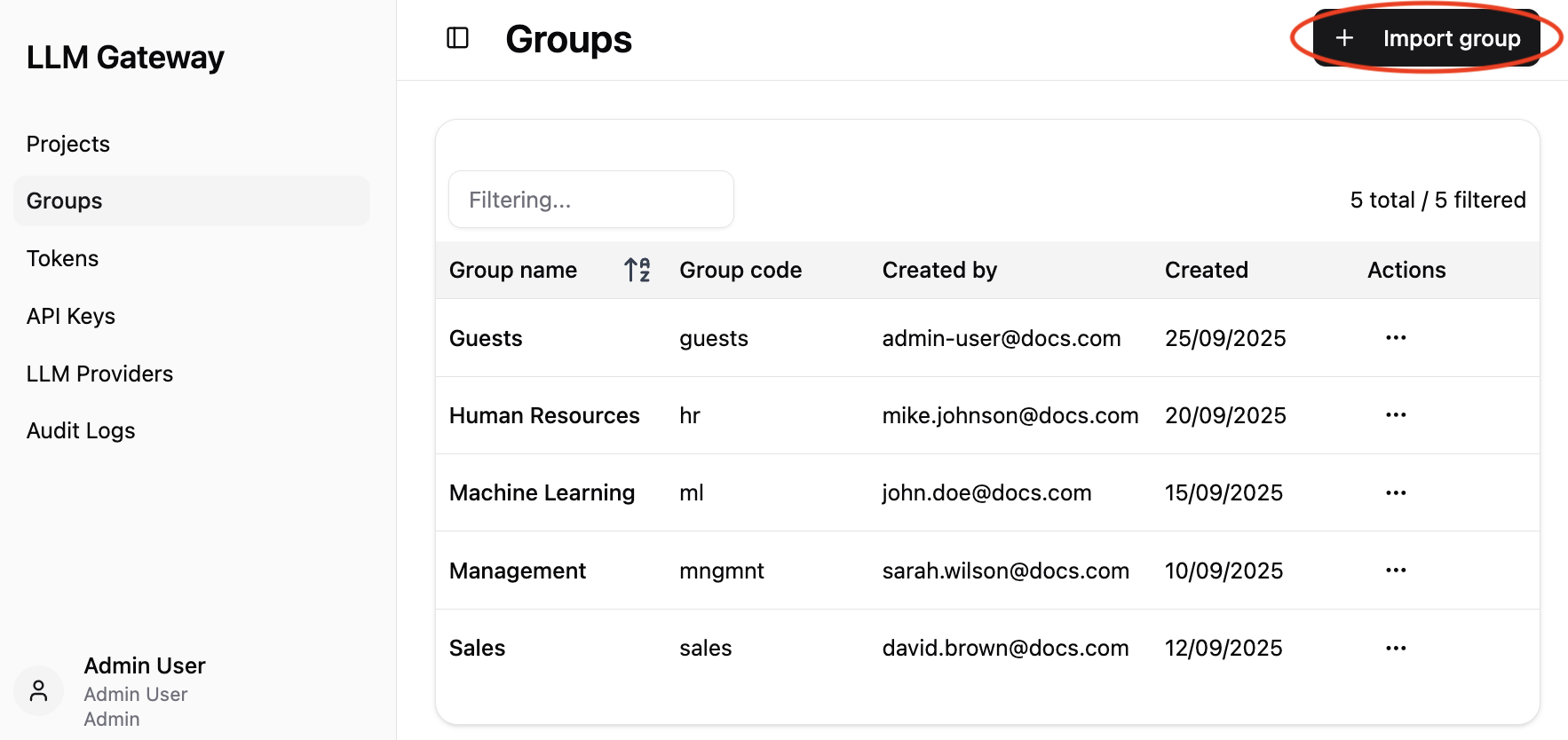
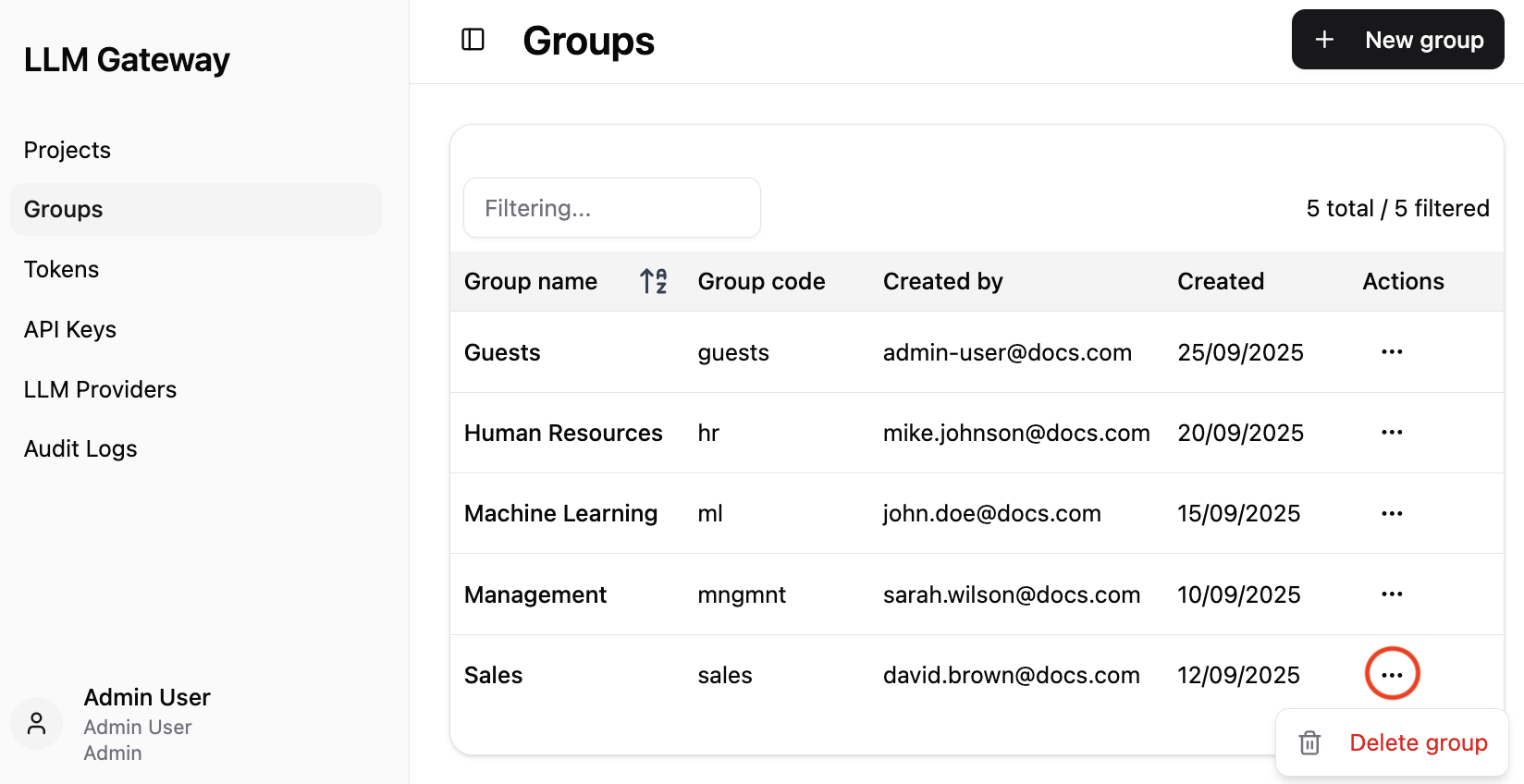
Note: After clicking on three dots menu you can delete the group.
Dashboard Components
The main groups table provides detailed information for each group:
-
Group name - Human-readable name for the group,
-
Group code - Unique identifier code for programmatic access,
-
Created by - Email address of the administrator who created the group,
-
Created - Date when the group was created,
-
Actions - Three-dot menu providing access to group-specific operations such as deletion.
Group Management Features
Importing Groups
The recommended way to add groups is by importing them directly from your IAM provider (Azure Entra ID etc.):
- Click the
+ Import groupbutton (highlighted in red circle) to open the import dialog, - The import dialog displays all available groups from your IAM provider in a searchable table,
- Select groups to import by clicking on rows (multi-select supported),
- Use the filtering input to quickly find specific groups,
- Click
Saveto import the selected groups into the LLM Gateway.
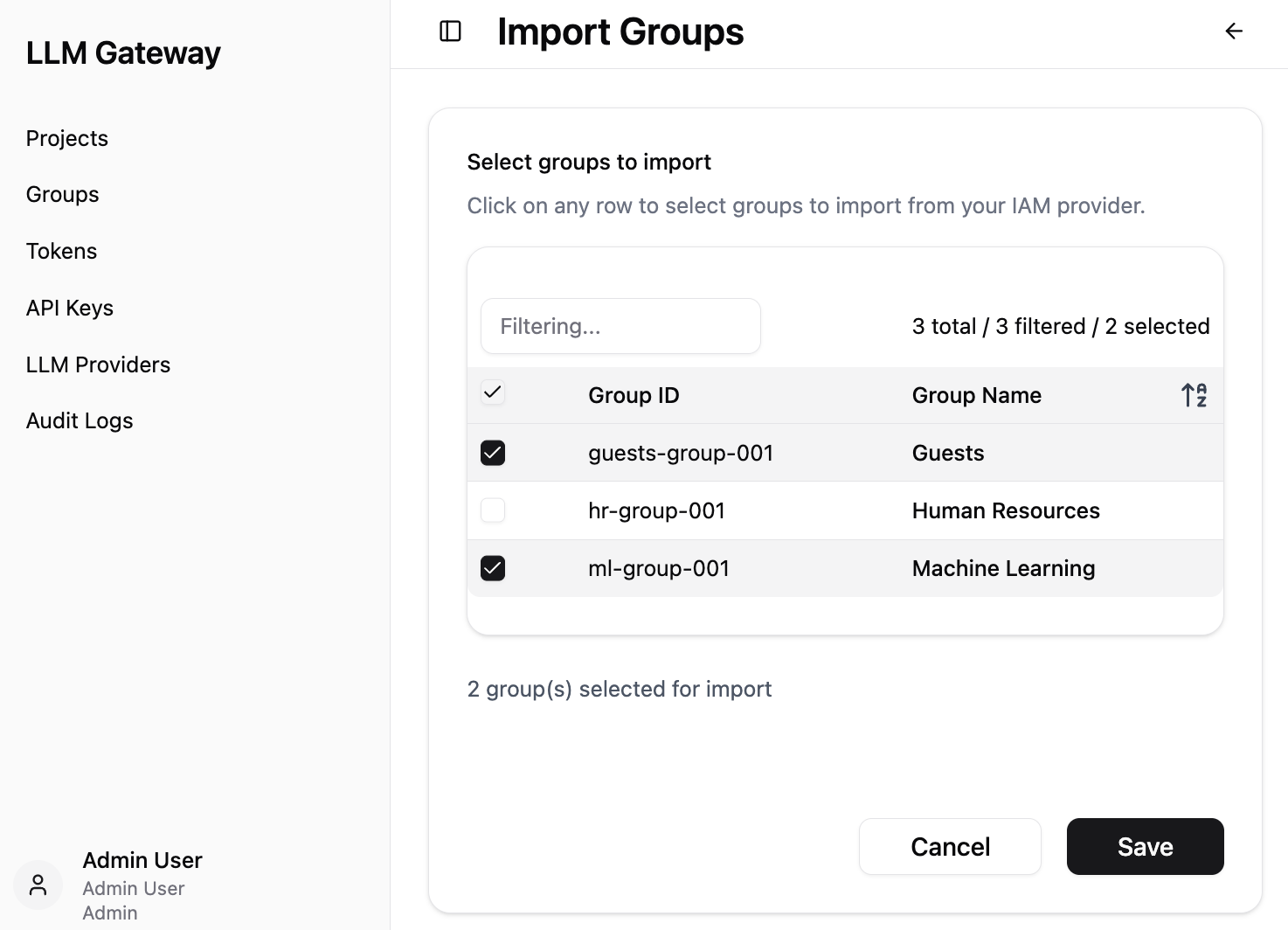
This import functionality streamlines the group registration process by automatically retrieving group information from your Entra provider, eliminating the need to manually enter group names and codes.
Note: Graph API must be enabled in LLMGW for group import functionality to work. For more information on configuring Graph API access, see the LLMGW environment configuration.
Creating New Groups Manually
Alternative method: If Graph API is not enabled in your LLMGW deployment, you can manually register groups by entering their information directly. This method requires you to know the exact group names and codes from your Azure Entra ID configuration.
To create groups manually:
- Click the
+ New groupbutton to create new groups, - Configure group name and code during the creation process.
When creating a new group manually, you need to provide:
- Group name - Descriptive name for the group,
- Group code - Unique programmatic identifier.
Important: Group names and codes must match with existing groups in Azure Entra ID.
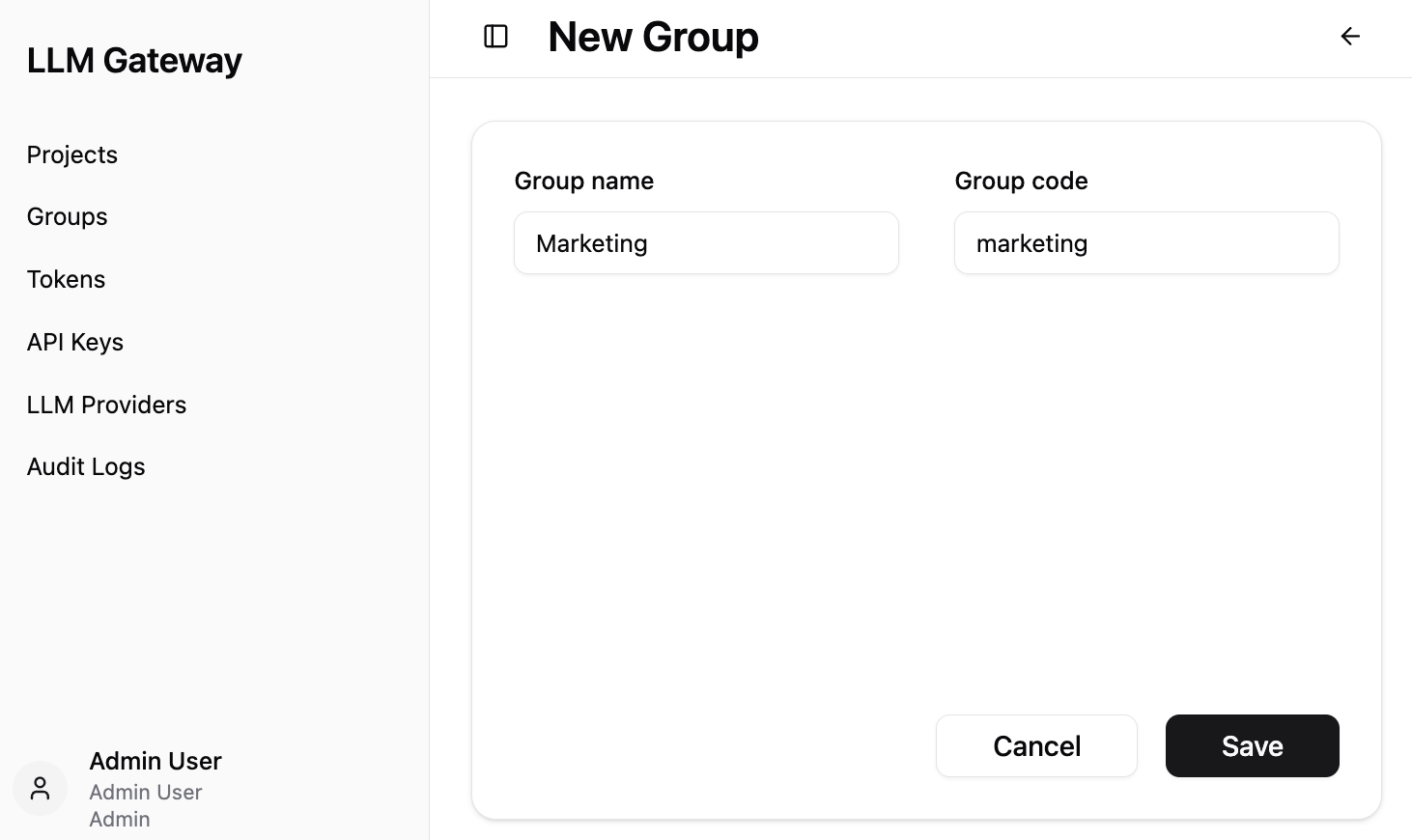
This interface allows you to register existing Azure Entra ID groups for use in project spend limits and access controls. Group names and codes must match exactly with groups already configured in Azure Entra ID, ensuring seamless integration with your organization's identity management system.