API Keys
The API Keys page provides management of API keys within your LLM Gateway deployment. Administrators can create new API keys for projects, monitor key status, and manage key lifecycle including rotation and deletion for security purposes.
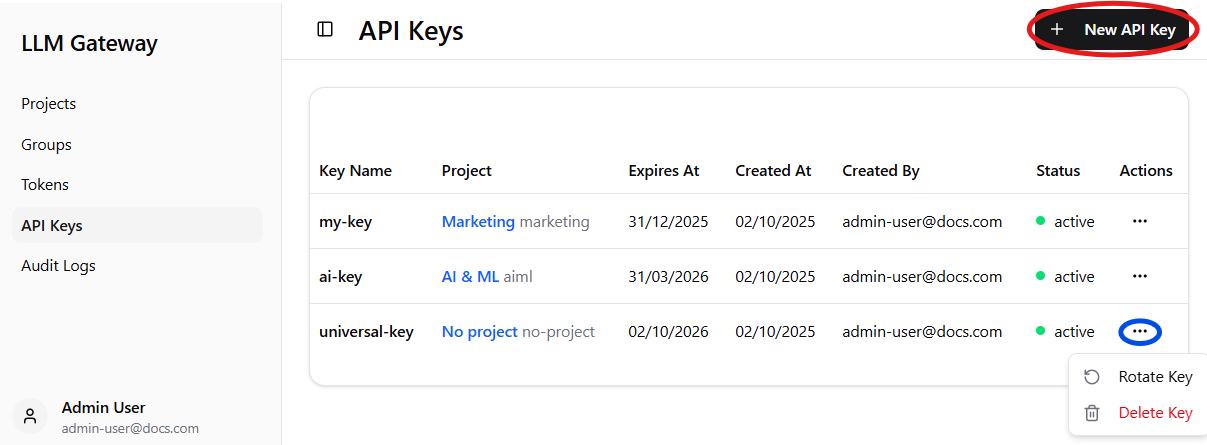
Note: After clicking on three dots (highlighted by blue circle) menu where you can rotate or delete the API key will appear.
Dashboard Components
API Keys Table
The main API keys table provides detailed information for each key:
-
Key Name - Descriptive name for the API key,
-
Project - Associated project name and code (clickable links to project details),
-
Expires At - API key expiration date,
-
Created At - Date when the key was created,
-
Created By - Email address of the administrator who created the key,
-
Status - Current key status (active/inactive) with green indicator,
-
Actions - Three-dot menu providing access to key-specific operations such as rotation (expiration renewal) and deletion.
API Key Management Features
Creating New API Keys
- Click the
+ New API Keybutton (highlighted by red circle in the image above) in the top-right corner to create new API key, - Configure key name, project assignment and choose validity period during the creation process,
- API keys are automatically generated with secure random values.
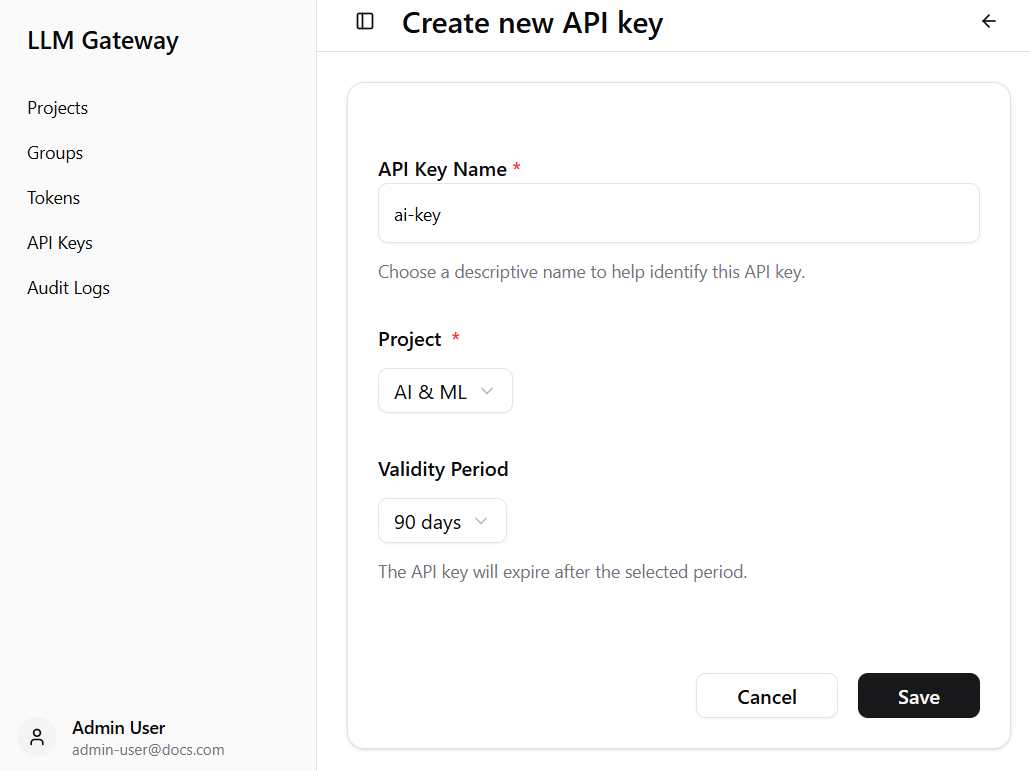
API Key Configuration
When creating a new API key, you will need to provide:
- Key Name - Descriptive name for the API key,
- Project - Select the target project from available options,
- Validity period - Select number of days the key is going to be valid for.
API Key Creation Success
After successful API key creation, you will see a confirmation dialog with important security information:
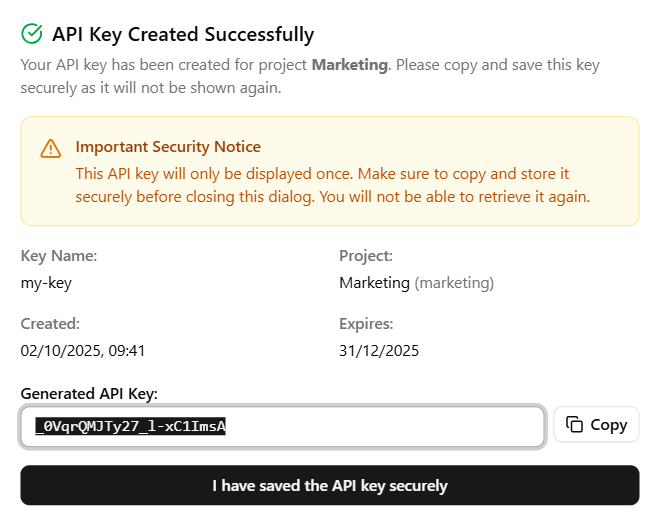
Important Security Notice: The generated API key will only be displayed once. You must copy and store it securely before closing the dialog, as it cannot be retrieved again.
The success dialog shows:
- Key Name - The descriptive name you provided,
- Project - Associated project name and code,
- Created - API key creation date and time,
- Expires - API key expiration date,
- Generated API Key - The actual API key string with copy functionality.