User tokens
The Tokens page provides management of API tokens within your LLM Gateway deployment. Administrators can create new tokens for users and revoke them when necessary.
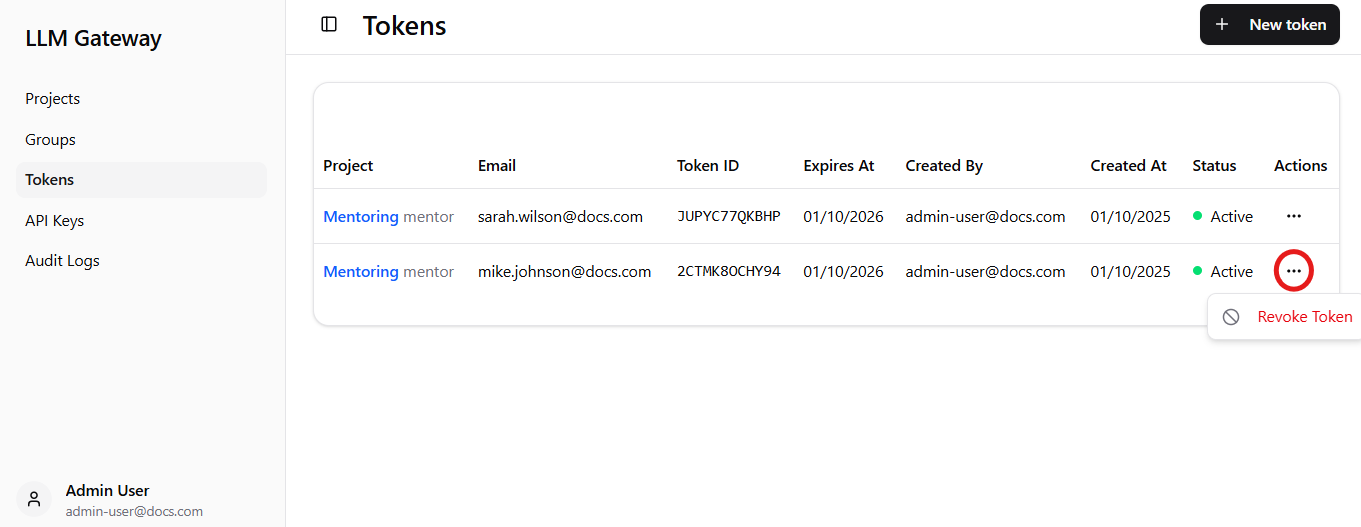
Note: After clicking on three dots (highlighted by red circle) menu where you can revoke the token will appear.
Dashboard Components
The main tokens table provides detailed information for each token:
-
Project - Associated project name and code,
-
Email - Email address of the token owner,
-
Token ID - Unique identifier for the token,
-
Expires At - Token expiration date,
-
Created By - Email address of the administrator who created the token,
-
Created At - Date when the token was created,
-
Status - Current token status (Active/Inactive) with green indicator for active tokens,
-
Actions - Three-dot menu providing access to token-specific operations such as revocation (highlighted in red circle).
Token Management Features
Creating New Tokens
- Click the
+ New tokenbutton in the top-right corner to create new tokens, - Configure user details and project assignment during the creation process,
- Tokens are automatically generated with secure random values.
Token Configuration
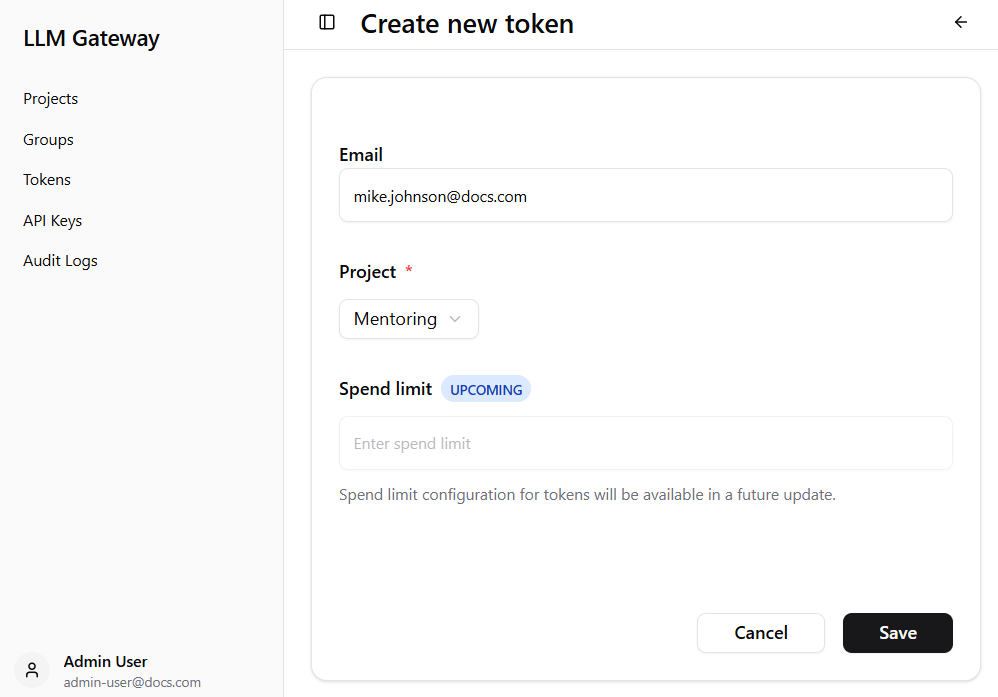
When creating a new token, you need to provide:
- Email - User’s email address for token ownership,
- Project - Select from dropdown menu of available projects,
- Spend limit - Spend limit configuration.
Note: The Project field is required and must be selected from the dropdown menu. Spend limit configuration for tokens will be available in a future update.
Token Creation Success
After successful token creation, you will see a confirmation dialog with important security information:
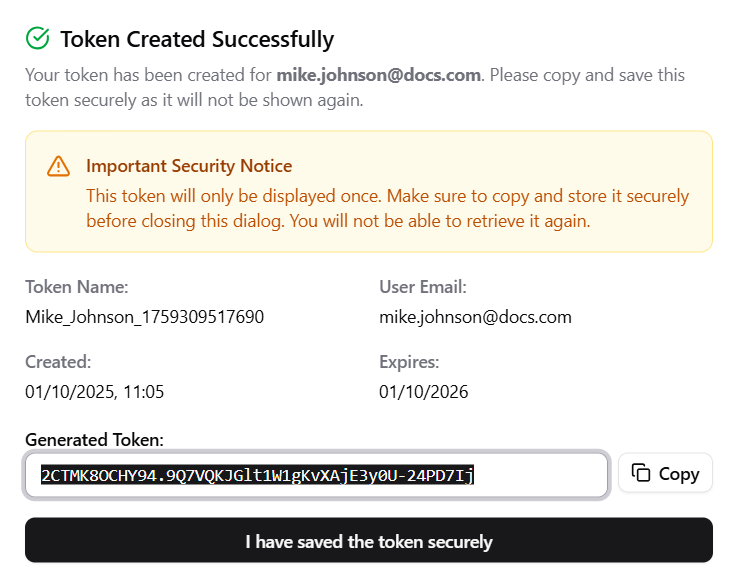
Important Security Notice: The generated token will only be displayed once. You must copy and store it securely before closing the dialog, as it cannot be retrieved again.
The success dialog shows:
- Token Name - Generated token name with timestamp,
- User Email - Associated user email address,
- Created - Token creation date and time,
- Expires - Token expiration date,
- Generated Token - The actual API token string with copy functionality.