Projects
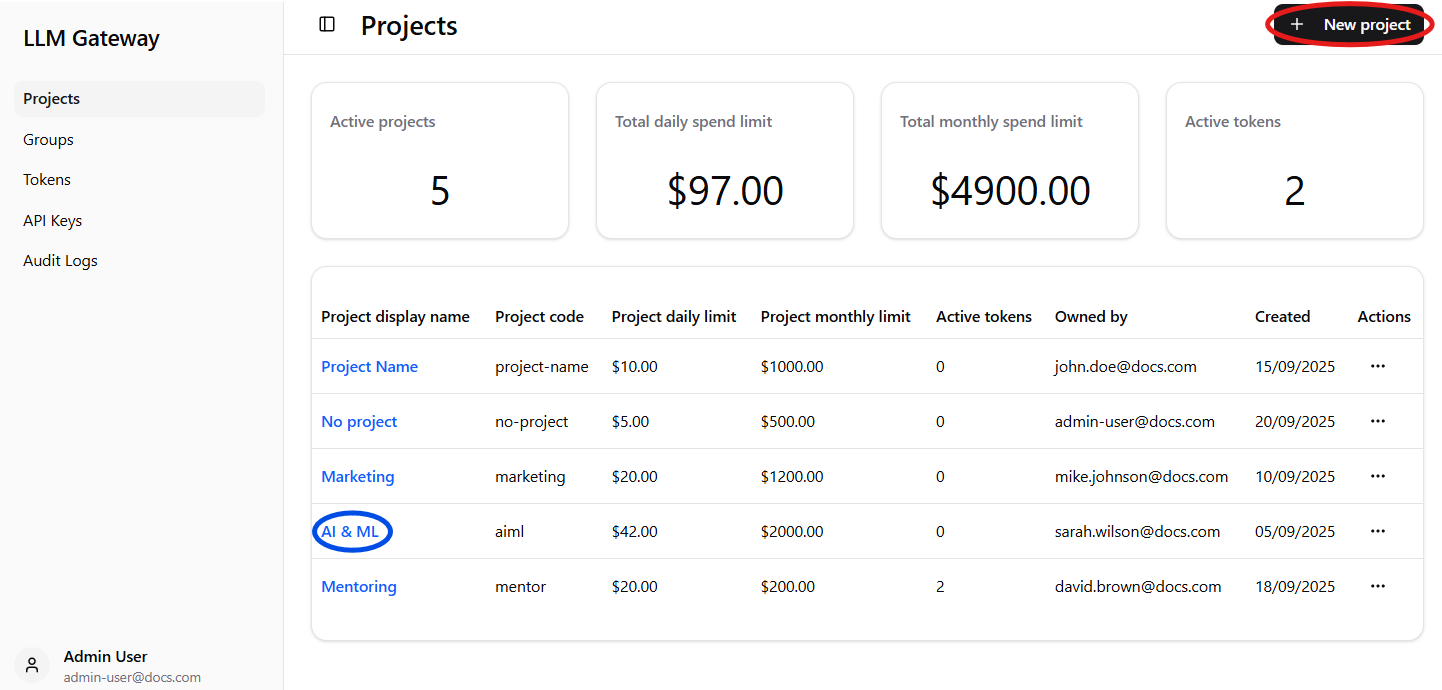
The Projects page provides comprehensive management and oversight of all projects within your LLM Gateway deployment. This central hub allows administrators to monitor project activity, manage spending limits, create new projects, and access detailed project configurations.
Dashboard Components
Overview Metrics
The dashboard displays four key metrics tiles providing a high-level summary:
-
Active projects - Shows the current number of active projects,
-
Total daily spend limit - Displays the aggregate daily spending limit across all projects,
-
Total monthly spend limit - Shows the cumulative monthly spending limit for all projects,
-
Active tokens - Number of currently active API tokens across all projects.
Projects Table
The main projects table provides detailed information for each project:
-
Project display name - Human-readable name for the project,
-
Project code - Unique identifier code for programmatic access,
-
Project daily limit - Daily spending limit configured for each project,
-
Project monthly limit - Monthly spending limit set for each project,
-
Active tokens - Number of active API tokens currently associated with the project,
-
Owned by - Email address of the project owner/administrator,
-
Created - Date when the project was created,
-
Actions - Three-dot menu providing access to project-specific operations such as deletion.
Project Management Features
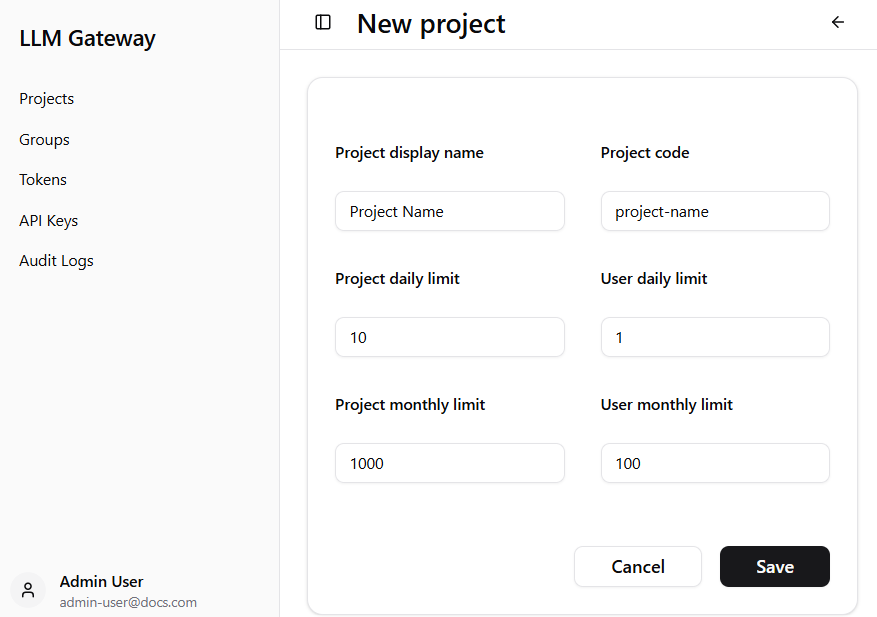
Creating New Projects
- Click the
+ New projectbutton (highlighted by red circle in the image on top of the page) to create new projects, - Configure project name, code, and spend limits during the creation process,
- Set granular controls for both project-level and user-level spend limits.
Project Access and Navigation
- Click on any project name (highlighted by blue circle in the image on top of the page) to access detailed project settings,
- Navigate to individual project dashboards with main management tabs:
Tokens Tab
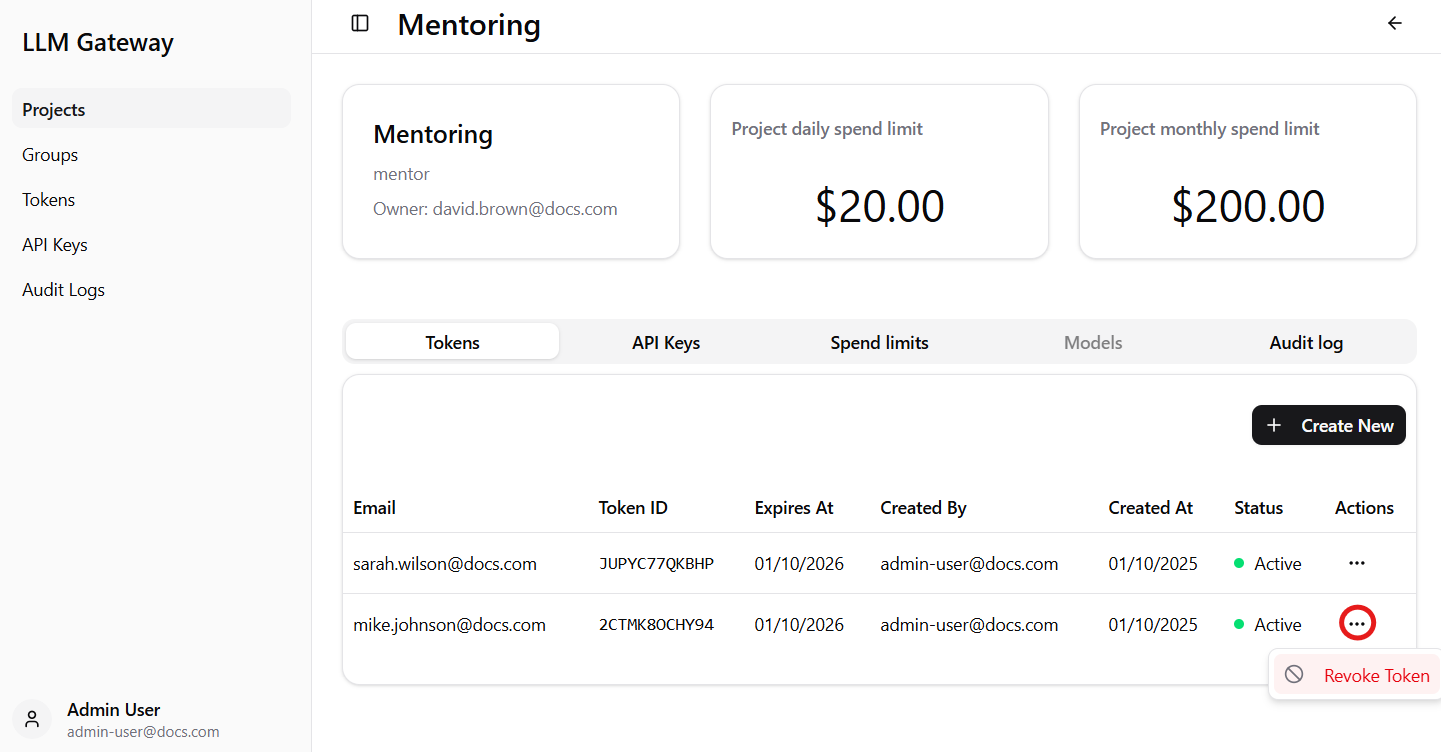
Monitor and manage all API tokens associated with the project:
- View comprehensive token details including names, IDs, and ownership,
- Track token status and expiration dates,
- Revoke tokens immediately for security purposes (highlighted in red circle).
API Keys Tab
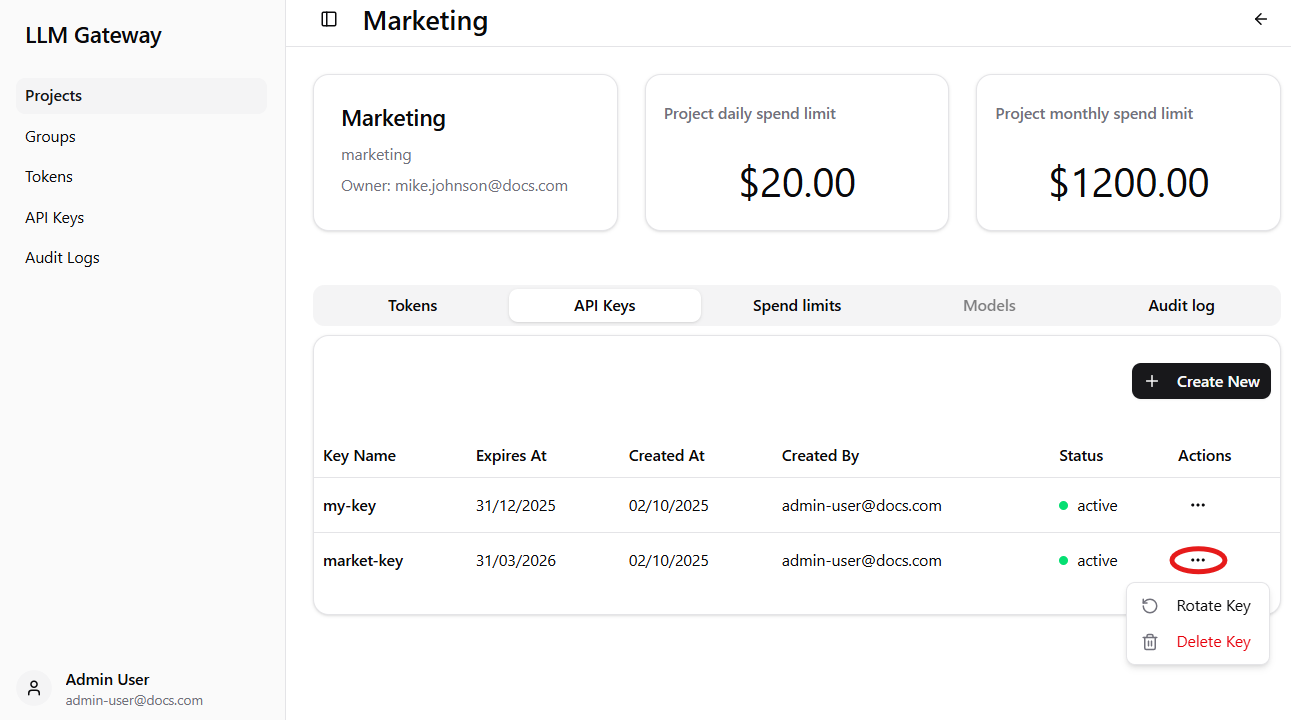
Manage API keys for programmatic access to the project:
- View all API keys connected to the project with detailed information including key names, expiration dates, and creation details,
- Monitor key status and ownership for security tracking,
- Create new API keys using the
+ Create Newbutton, this button redirects you to page explained in API Keys section. - Perform key management actions through the three-dot menu (highlighted in red circle):
- Rotate existing keys to renew the expiration date,
- Delete keys that are no longer needed.
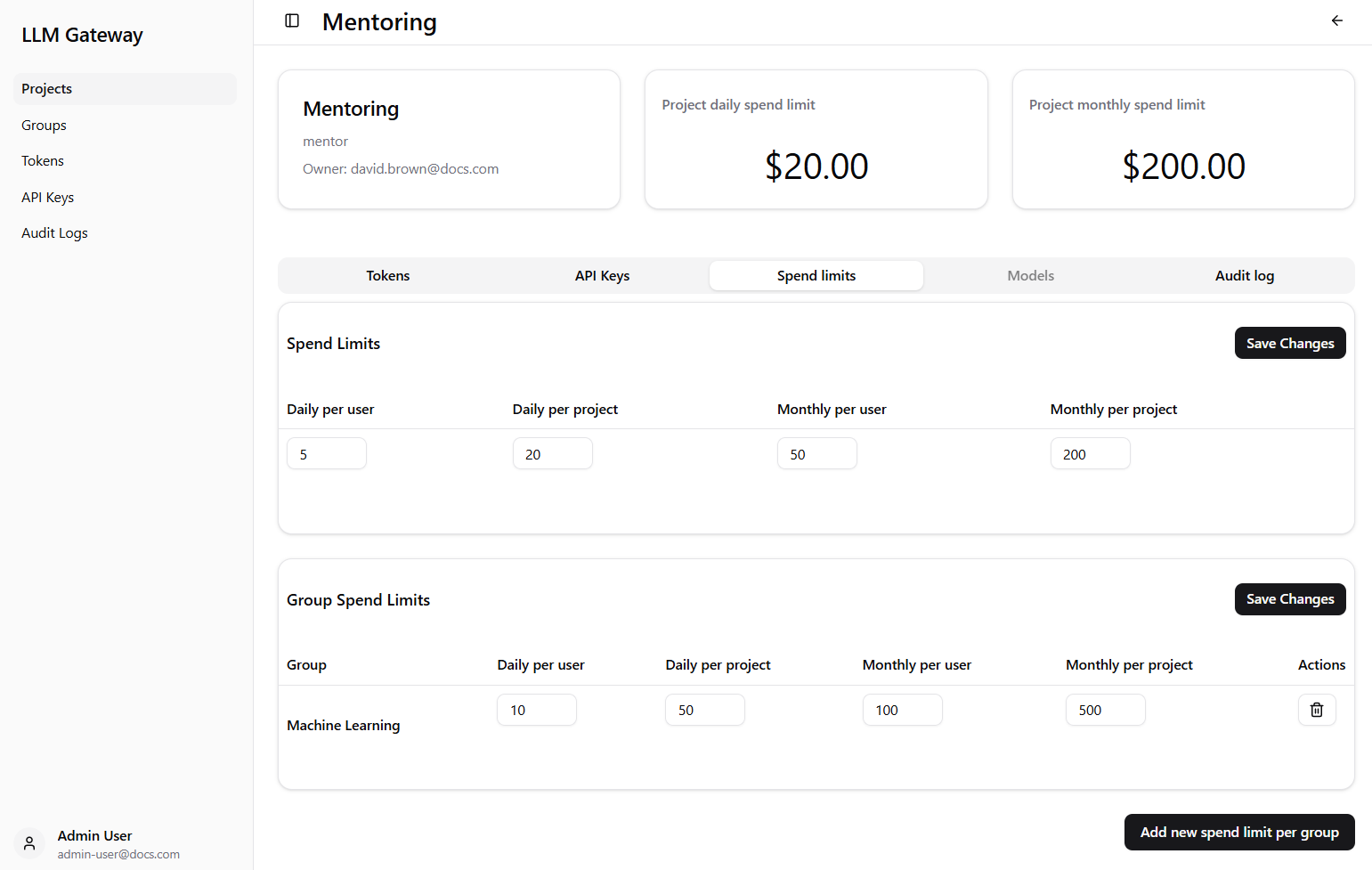
Spend Limits Tab
Configure granular spending controls at multiple levels:
- Set daily and monthly spending limits per user and per project,
- Configure group-specific spending restrictions for different groups,
- Add new spend limits for additional groups as needed.
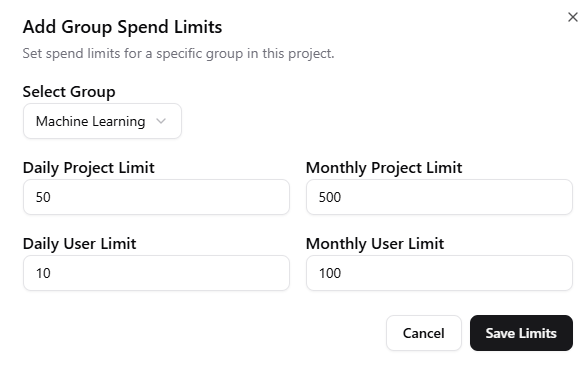
After clicking on Add new spend limit per group button, you will see a dialog that allows you to configure spending limits for a specific group that can be selected from a dropdown menu. Groups in dropdown menu must be already created in the database.
WARNING: When group spend limits are enabled (at least one group spend limit configured), users in groups without a configured limit will be denied access.
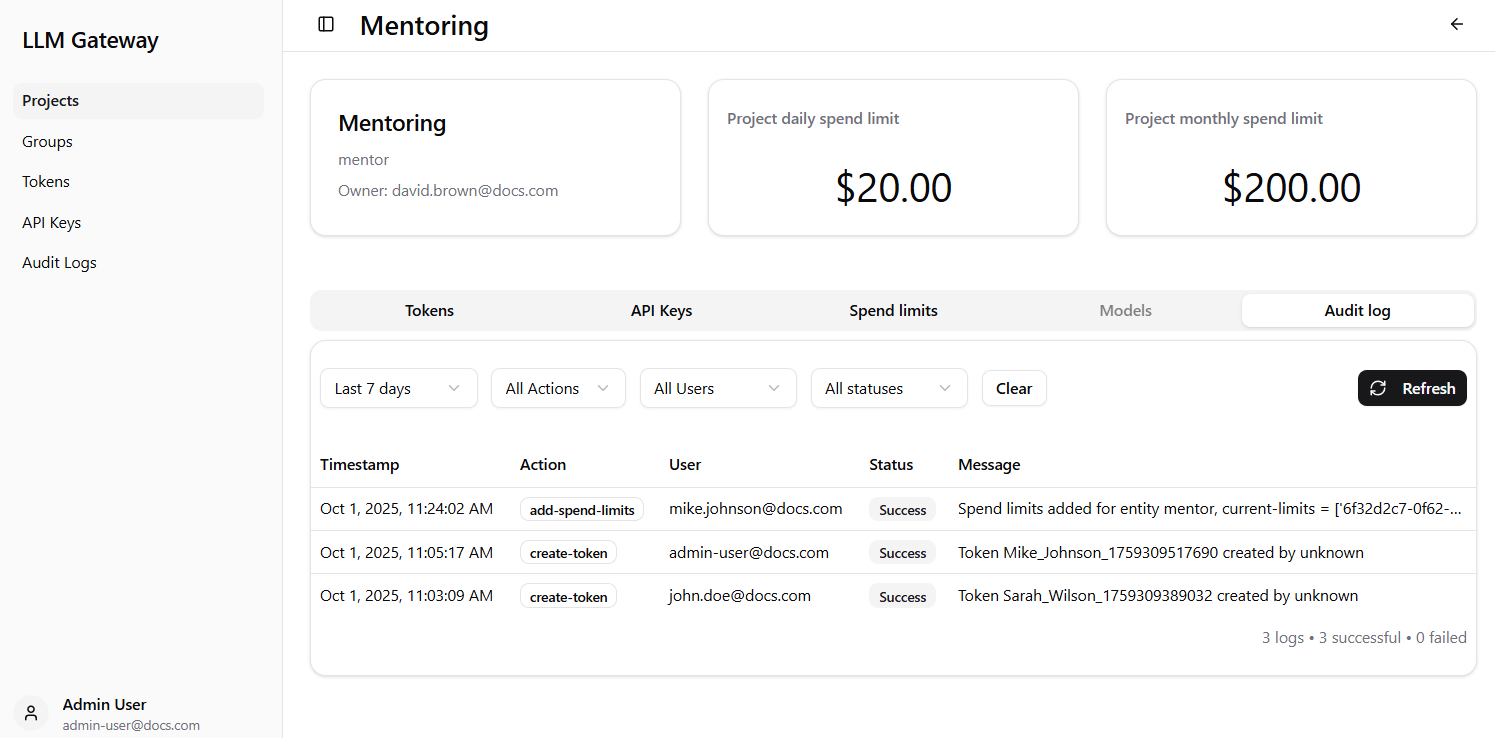
Audit Log Tab
Track all project activities and changes:
- You can filter logs with selection from dropdown menu by:
- time range,
- actions,
- users,
- status.
- View detailed log entries with timestamp, action type, user, status, and descriptive messages,
- Track success/failure status with summary statistics.
This flexible project structure allows organizations to organize their LLM usage according to their specific business needs and governance requirements.